

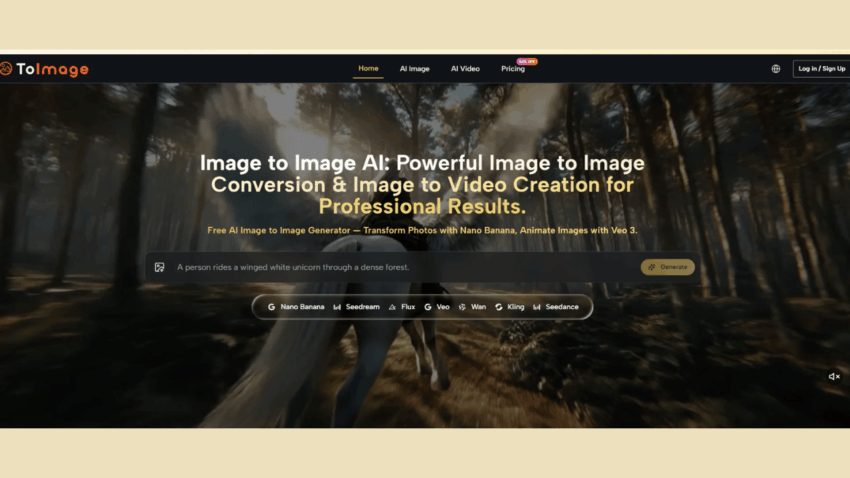
Marketing teams and content creators face a persistent mismatch. The same visual asset that works perfectly for a website hero image often fails when adapted to a vertical social media post. The product photo that looks strong on a desktop screen loses impact when cropped to a mobile story format. The sketch that communicates an idea clearly in a presentation falls flat when translated into an animated social clip. The solution is not to create more original assets. The solution is to make existing assets work harder. Image to Image supports this approach by providing multiple transformation pathways within a single workflow. The same source image can generate a product lifestyle shot, a stylized illustration variant, and a short motion clip without leaving the interface. This capacity to extend the useful life of a finished visual is where image-to-image platforms deliver practical value beyond one‑off generation.
Why Existing Assets Are the Most Underused Creative Resource
Most organizations already have a library of approved visuals. Product photography, campaign assets, event coverage, character concepts, educational graphics, and brand style frames all represent sunk creative cost. These assets have already passed through design review, legal approval, and stakeholder sign‑off. They are trustworthy, on‑brand, and ready to use. The bottleneck is not creating more assets. It is adapting existing assets to different formats, platforms, and use cases. A product image that took three rounds of revisions to finalize can be transformed into a background‑less cutout, a seasonal variant, a social media crop, and a short motion asset without starting from scratch each time.
How Image‑to‑Image Workflows Support Asset Extension
The workflow starts with an uploaded source image. That image becomes the anchor for all subsequent transformations. The user writes a prompt describing the desired change, selects a model pathway suited to that change, and generates a new version. That new version inherits the source image’s composition, subject positioning, and spatial relationships while applying the requested transformation. The result is a family of outputs that share a common visual DNA. This matters for brand consistency. When the same product photo generates a static hero image, a stylized social variant, and a motion clip, all three outputs look like they belong to the same campaign because they started from the same anchor.
A Three-Step Workflow for Asset Extension
The platform structures asset extension as a short loop that keeps the source image at the center.
Step One: Upload the Source Image
The Anchor That Stays Fixed Across All Outputs
The user uploads an existing visual asset. This can be a finished product photo, an approved campaign image, a brand sketch, a location shot, or any visual that contains the necessary subject and framing. The platform retains this image in a fixed panel throughout the session. Changing the output type—from a static variant to a motion clip—does not require re‑uploading the source. The anchor remains constant, which means every output shares the same compositional foundation.
Step Two: Describe the Intended Transformation
The Prompt Directs the Output Type
The user writes a short instruction that describes what should be different in the output. For static variants, the prompt might request a background change, a lighting adjustment, a style transfer, or an environment replacement. For motion extensions, the prompt describes the desired movement, such as a slow camera pan, an atmospheric shift, or subtle object animation. The platform treats both types of requests within the same prompt‑and‑generate loop, which means a user can move from static to video without learning a separate interface or switching to a different tool.
Step Three: Select a Model and Generate
Model Choice Determines the Output Type
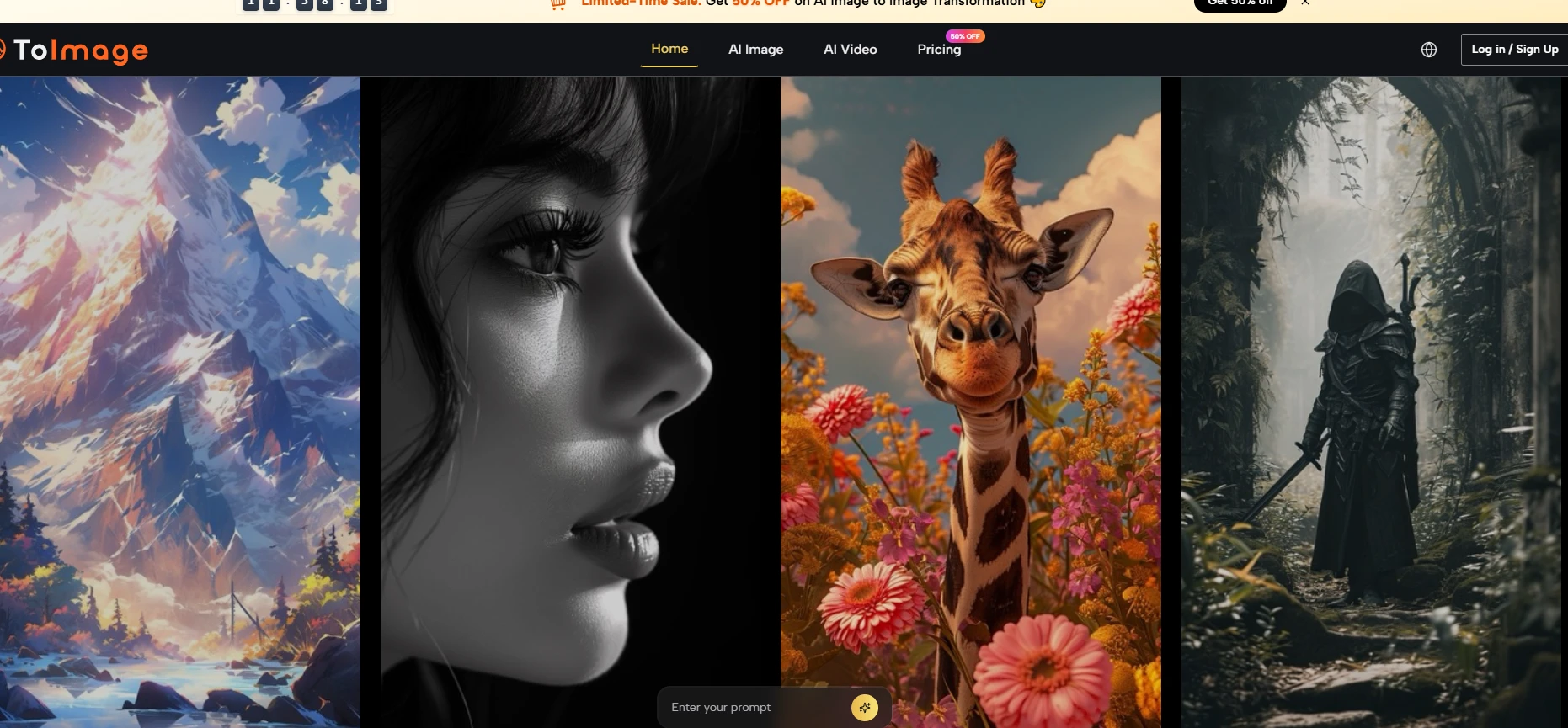
The model selector includes pathways for different output categories. Some models are designed for static image transformation with an emphasis on realism, structure preservation, or style application. Others are associated with image‑to‑video capabilities, turning a still image into a short motion clip. The user selects the model that matches the intended output type, clicks generate, and receives the result. If the output does not match expectations, the user can refine the prompt, switch to a different model, or generate again from the same source.
Practical Asset Extension Scenarios
Product Photography to Lifestyle Imagery
A product photo taken on a white background can be transformed into a lifestyle shot placed in a realistic environment. The source image provides the product’s shape, label text, and proportions. The prompt describes the desired setting, such as a kitchen counter, a living room shelf, or an outdoor market. The model preserves the product’s geometry while replacing the background and adjusting lighting to match the new environment. This single transformation turns a studio shot into material suitable for a website product page, a social media post, and an email campaign.
Sketch to Finished Illustration
A rough hand sketch can be transformed into a polished illustration. The source image provides the composition, subject pose, and spatial relationships. The prompt describes the desired rendering style, such as watercolor, vector art, or digital painting. The model applies the style while preserving the original sketch’s layout. This transformation allows illustrators to iterate on compositions using simple sketches, then apply different rendering styles to produce final assets.
Still Image to Short Motion Clip
A finished static image can be extended into a short motion clip. The source image provides the visual content. The prompt describes the desired movement, such as a slow zoom, a gentle camera pan, or subtle atmospheric motion like drifting clouds or rippling water. The image‑to‑video model generates a clip that maintains the source image’s composition while adding motion. This transformation turns a static asset into material suitable for social media stories, product page loops, and short ad placements.
Comparison: Asset Extension Workflows Across Platform Types
| Capability | ToImage AI Workflow | Traditional Image Editors | Dedicated Video Tools |
| Source asset reuse | High; same source generates multiple output types | Low; each output requires manual rework | Low; video tools expect video inputs |
| Static to video transition | Same interface; model switching changes output type | Not supported | Separate workflow; different tool required |
| Output family consistency | High; all outputs share the same source anchor | Manual; consistency requires careful replication | Not applicable |
| Learning curve for video | Low; prompt behavior mirrors static generation | N/A | High; requires timeline editing |
| Ideal use case | Campaigns requiring static and motion from one asset | Precision editing of single outputs | Full‑scale video production |
What the Platform Does Not Promise About Video Generation
Image‑to‑video capabilities should be understood with realistic expectations. Generating motion from a still image is technically complex, and output quality depends on the source image’s composition, the clarity of the motion prompt, and the model’s behavior. The platform does not claim that every image‑to‑video generation will produce broadcast‑ready footage. Motion outputs are best understood as concept clips, mood extensions, or lightweight social assets rather than replacements for professional video production. Users who require high‑precision motion, long durations, or complex scene animation should not rely solely on AI image‑to‑video tools. The feature adds value within a broader content pipeline, but it does not replace dedicated video production workflows.
Who Benefits Most from Asset Extension Workflows
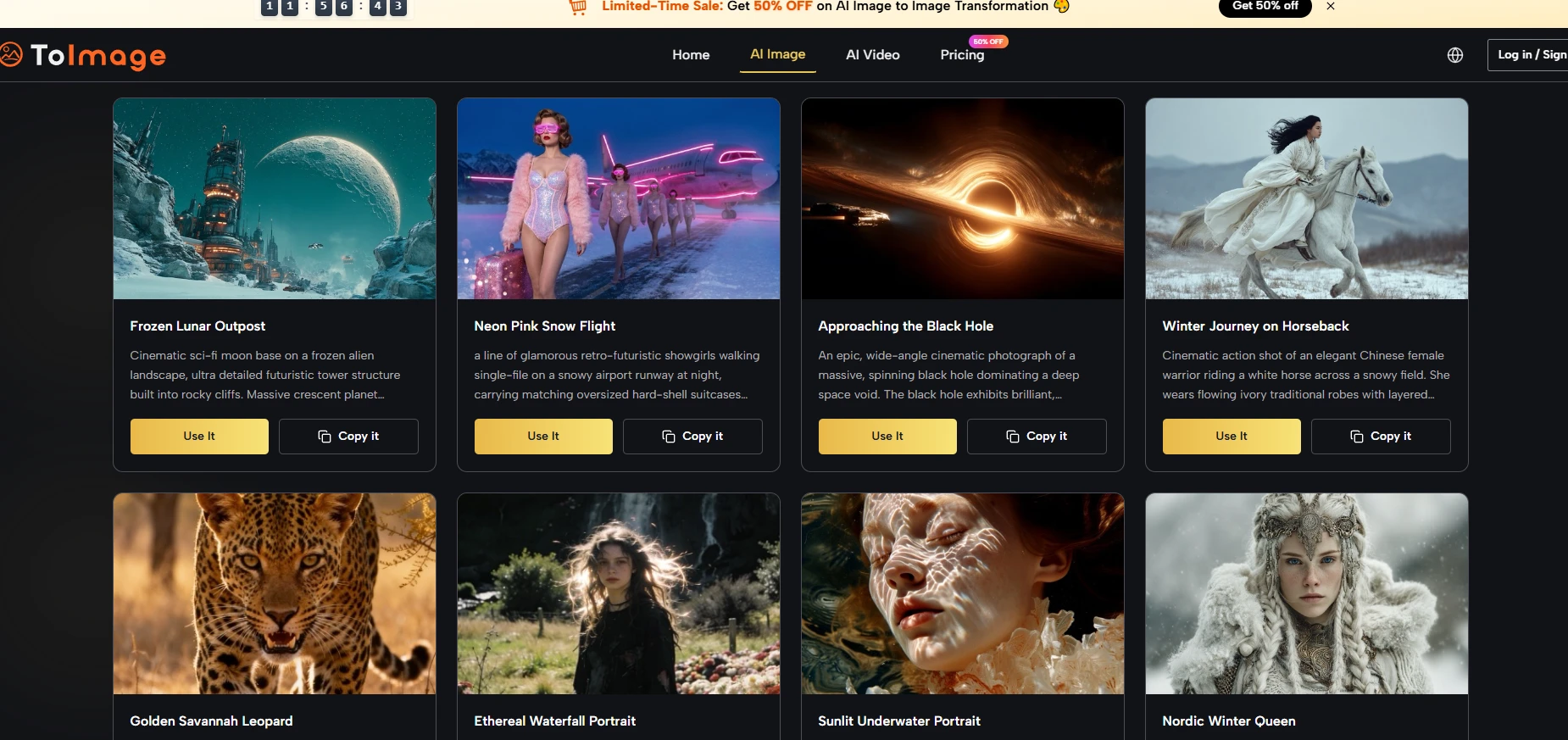
Marketing teams running cross‑channel campaigns benefit most from a platform that can extend a single asset across multiple formats. A product launch might require a static hero image for the website, stylized variations for social media, and a short motion clip for an ad placement. Doing this work across three separate tools fragments the workflow and increases the risk of visual inconsistency. Brand teams managing recurring content, such as seasonal campaigns or ongoing social series, value the ability to reuse approved source images as anchors for multiple output types. Freelance creators who produce both static and motion content for clients appreciate having both capabilities in a single interface. Individual creators exploring how their still images might move also find value in the image‑to‑video feature, even if the outputs are not production‑final. For teams that produce only static images and have no need for motion, the video extension may be irrelevant. But for anyone who looks at a still image and wonders how it might move, having that capability within the same Image to Image AI workflow reduces tool switching and keeps the creative thread intact.
