

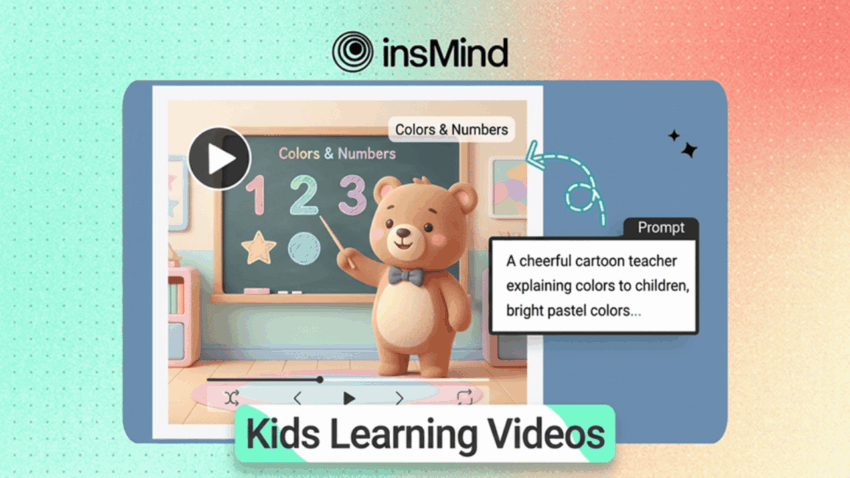
Educational videos for young children play by different rules than any other content format. The concept must land in the first few seconds. The visuals and narration must be in perfect sync. And every scene needs to deliver exactly one idea—not two, not a summary of three.
AI video generation is a natural fit for this format because it responds to structured scripts with scene-level precision. An AI-powered video maker can render a color-by-color preschool lesson, a counting sequence with matching objects on screen, or a cause-and-effect science clip—all from a well-organized text prompt.
Whether you are a classroom teacher, a children’s content creator, or a parent building bedtime learning routines, this guide walks you through the exact workflow and prompt structure that produces results with young audiences.
- Write a structured scene-labeled script for maximum control over each frame.
- Choose model, audio, duration, and aspect ratio to match your distribution channel.
- Generate and download a finished MP4 ready for classroom use or social sharing.
Why AI Video Works for Kids Learning Content
Most AI video prompts fail for kids content because they describe a scene rather than a learning sequence. “A colorful cartoon classroom” produces a visual. “Scene 1: A white screen fills with a bold red circle. A calm narrator says: Red. The circle is red.” produces a lesson.
That distinction matters because young viewers cannot fill in logical gaps on their own. If the visual and the narration are not explicitly linked in the script, the AI will not guarantee they stay connected in the rendered clip. Scene-level scripting eliminates that ambiguity.
Scene-labeled scripts also make iteration fast. If Scene 3 is weak, rewrite that block alone without touching the rest of the prompt. This granular control is something even professional animation studios envy.
Script Templates for Popular Children’s Learning Topics
Template 1 — Colors Lesson (Ages 2–5)
The most popular starting point for preschool creators. Keep one color per scene and always pair the color name with a familiar object.
Create a kids video teaching colors. Language: English. Scene 1: A white screen fills with a large red circle. Narrator: “Red. The apple is red.” A red apple appears beside the circle. Scene 2: The circle changes to blue. A blue balloon floats in. Narrator: “Blue. The balloon is blue.” Continue through six colors.
Template 2 — Numbers Lesson (Ages 3–6)
Numbers content works best when the count of objects on screen matches the numeral simultaneously. Keep the background static so the number pops visually.
Create a kids counting video. Language: English. Scene 1: A large ‘1’ appears on a pastel blue background. One star drops in. Narrator: “One.” Scene 2: ‘2’ appears. Two stars. Narrator: “Two.” Continue to ten.
Template 3 — Science Concept (Ages 6–10)
Older children benefit from cause-and-effect structure. Frame each scene as a question that the next scene answers.
Create a science video explaining the water cycle for kids. Language: English. Scene 1: A sunny sky above a lake. Narrator: “Where does rain come from?” Scene 2: Tiny water droplets rise toward clouds. Narrator: “Water evaporates into the sky.” Scene 3: A cloud fills with droplets and darkens. Scene 4: Rain falls back into the lake. Narrator: “And the cycle starts again.”
How to Make Educational Videos for Kids with insMind
insMind’s text-to-video workspace handles structured scripts natively. Use this four-step flow alongside a script-driven AI video tool approach for best results.
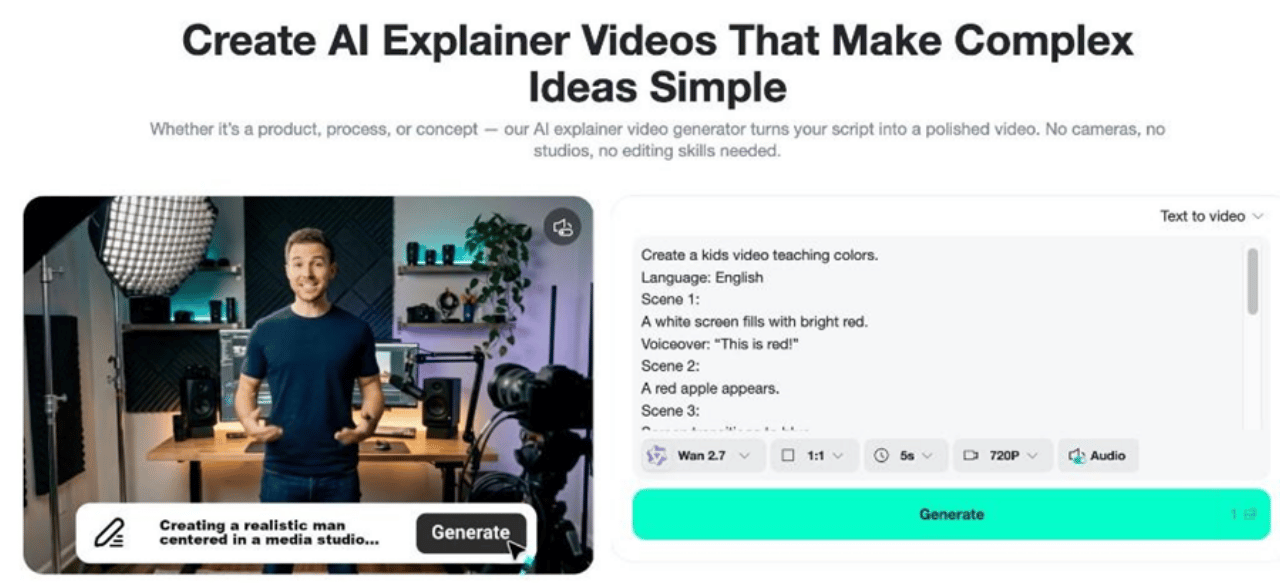
Step 1: Write and paste your structured script prompt
Open the text-to-video workspace and paste your scene-labeled script into the prompt field. If you are building from scratch rather than adapting a template, think of it as writing a shot list with built-in narration. Each labeled scene becomes one unit of visual instruction for the model.
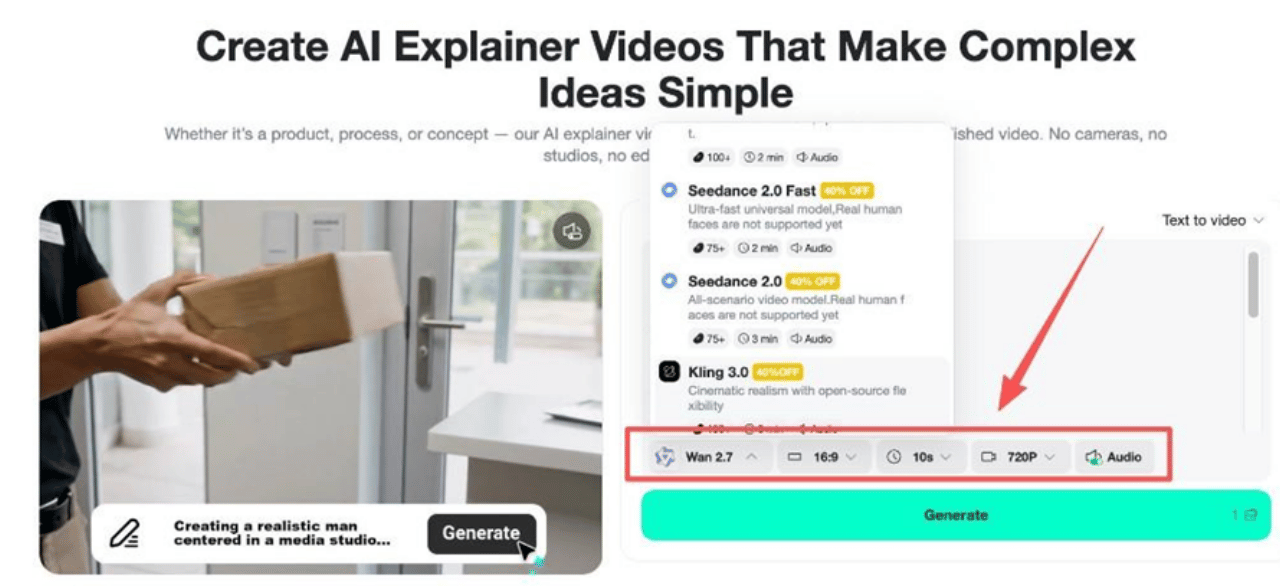
Step 2: Choose model, audio, duration, and aspect ratio
For voiceover-heavy kids content, prioritize models that handle smooth transitions and clear text rendering. Enable audio—children’s learning depends on synchronized speech and visuals. Set duration based on your scene count: five scenes at two seconds each needs at least ten seconds of clip length. Choose 16:9 for YouTube Kids or classroom display, 9:16 for Instagram Reels or TikTok.
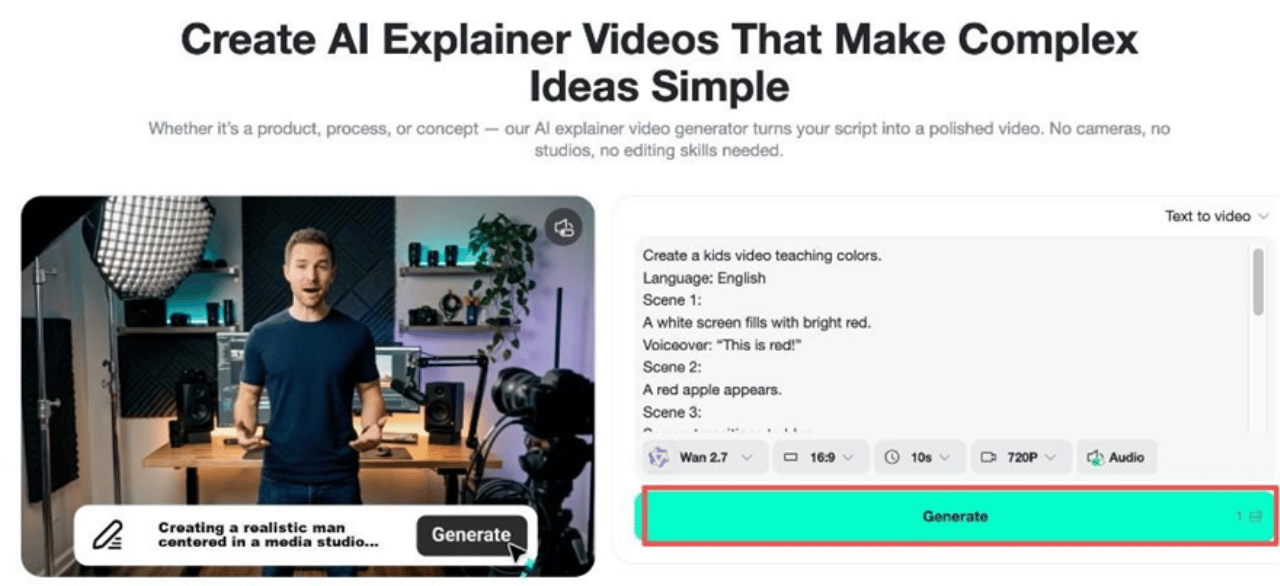
Step 3: Generate
Hit Generate. The progress indicator advances as the model processes each scene in sequence. Watch the full preview before downloading—check that scene transitions are clean and that on-screen text or overlays match your script’s intent.
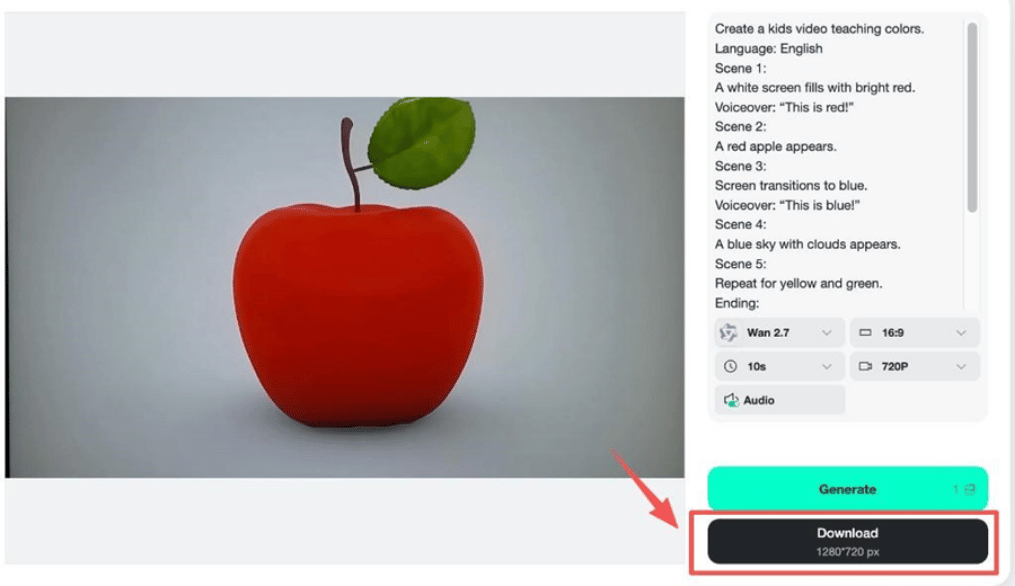
Step 4: Download your finished clip
When the preview meets your standard, click Download to save the MP4 at your selected resolution (720p, 1080p, or higher depending on model). The file is ready for direct upload to YouTube Kids, Google Classroom, or your social platform of choice.
Choosing Model, Duration, and Audio for Your Age Group
Model: For kids educational content, prioritize models that handle smooth frame transitions and clear visual rendering over raw cinematic quality. Clarity beats spectacle every time for young audiences.
Audio: Always enable audio for educational kids content. The learning loop depends on simultaneous visual and auditory input. A silent clip drops retention significantly with under-sixes.
Duration per age band:
- Ages 2–4: five to eight seconds per concept. Attention windows are short.
- Ages 4–6: eight to fifteen seconds per clip is comfortable.
- Ages 6–10: up to sixty seconds, structured around a clear narrative arc.
Aspect ratio: 16:9 for YouTube Kids, classroom projectors, and smart TVs. 1:1 for Instagram feed posts or educational app thumbnails. 9:16 for TikTok or Reels-based distribution.
Six Tips for Kids Videos That Reinforce Learning
These production principles apply whether you are using a basic animated video creator for learning or building a full curriculum series:
- One concept per clip. Resist bundling multiple lessons. Focused repetition beats breadth every time.
- Name the object before the concept. “A red apple. The apple is red.” outperforms “Red is the color of this apple.”
- Use deliberate repetition. Write the same narration line twice if the concept benefits from it.
- Keep the camera static. Rapid camera moves compete for attention with the learning content.
For cartoon-style video generator output, use pastel backgrounds and high-contrast objects—they render cleanly and appeal to preschool visual processing.
- Test with the intended age group. Play a clip for a child in your target age range before publishing. Their attention tells you everything.
Frequently Asked Questions
Do I need video editing skills to make kids educational videos with AI?
No. The insMind workflow is entirely prompt-based: write your script, configure settings, generate, download. No timeline editing, no voiceover recording, no software installation.
Can I use AI-generated kids videos for my YouTube Kids channel?
Yes, with proper labeling. YouTube requires AI-generated content to be disclosed in the advanced settings during upload. Mark the video as “Made for Kids” if your target audience is under 13.
How long should each kids educational video be?
For toddlers (ages 2–4): five to eight seconds per concept. For preschool (ages 4–6): up to fifteen seconds. For primary school age (6–10): up to sixty seconds with a clear three-act structure.
What if the AI skips or merges my scenes?
This happens when the script is too dense for the selected duration. Either raise the duration to give the model more render time, or split the script into two shorter clips.
Is the voiceover in the generated clip clear enough for kids?
Audio-enabled models produce clear synthetic narration suited for young listeners. For curriculum-grade content, review the audio in the preview player and regenerate if any words are slurred or mispronounced before downloading.
Start Building Your First Kids Learning Video
AI educational video for children is no longer a novelty—it is a practical production tool for teachers, parents, and content creators who need to produce consistent, engaging clips without a studio budget.
Write a scene-labeled script, paste it into insMind, configure audio and duration for your age group, and download a classroom-ready MP4 in minutes.
