
If you accidentally deleted an album or lost a chat history, the panic is real. Online advice only adds to the confusion some say recovery is impossible without rooting (a risky process that can break apps like banking tools), while others promise miracles from shady apps. You just want a safe way to Android data recovery without root.
The truth is more nuanced. Whether recovery is possible depends on your device and Android version. Based on hands-on testing with Samsung, Xiaomi, and Pixel phones (Android 10–15), full sector-level scans aren’t allowed without root, but recovery is still achievable. Modern Android security blocks deep scanning, yet you can often restore photos and messages by accessing hidden caches, thumbnails, and temporary app data that normal file managers can’t see.
Immediate First Aid: Stop Overwriting Data
Before you download software or even check your cloud backups, you must protect the empty space on your phone where your files used to live. The greatest enemy of data recovery is not the deletion itself, but the new data that overwrites it.
- Turn on Airplane Mode: This stops background updates, WhatsApp messages, and emails from downloading and occupying the storage space your deleted files are holding.
- Do Not Take New Photos: Every new photo you take could be writing over the sectors containing the photo you lost.
- Do Not Restart Your Phone: Rebooting creates temporary system logs that can overwrite cache data.
Step 1: Native Solutions (Check These First)
Before attempting third-party software recovery, you should exhaust all native recovery options. Many users panic and assume “deleted” means ” gone,” but modern Android ecosystems are built with safety nets. Cloud backups and local trash bins are the primary sources for non-root recovery on modern Android devices.
Checking the Trash Bin
Most modern Android gallery apps, including Google Photos and Samsung Gallery, retain deleted items for 30 to 60 days.
- Open your Photos app.
- Navigate to the “Library” or “Albums” tab.
- Look for a folder labeled “Trash Bin,” or “Recently Deleted.”
- Select the images and tap “Restore.”
Cloud Sync Options
If the files are not in the local trash, check your cloud accounts. Often, a device might delete a local copy to save space, but the cloud version remains.
- For Photos: Verify Google Photos via a web browser. This confirms if the sync captured the images before they were removed from the device. This is often the fastest method for deleted photo restore.
- For Messages: For sms recovery Android, check Google Drive backups (often found under Settings > Google > Backup).
- Manufacturer Clouds: Samsung users should also check Samsung Cloud, while Xiaomi users can inspect the Mi Cloud trash bin. These platforms frequently save data versions that are no longer visible in your phone’s main file manager.
Step 2: Decision Guide: Manual Methods vs. Professional Tools
If your Trash bin is empty and Cloud sync was turned off, you are now at a crossroads. You must decide whether to accept the loss or try professional recovery software.
Many users struggle with determining which apps are safe. To simplify this, we have compared “Manual Recovery” (what you just tried) against “Professional Tools” (specifically DroidKit Quick Recovery) based on verified Success Rate, Cost, and Data Quality.
Recovery Success Probability Matrix
| Feature | Manual Recovery (Cloud/Trash) | Professional Tools (DroidKit) |
| Technical Skill | None Required | Basic (Click-through interface) |
| Cost | Free | Free Scan / Paid Restore |
| Root Required? | No | No (Quick Recovery Mode) |
| Quality | Original Resolution | Mixed (Originals + Thumbnails) |
| Success Rate (Recent) | High (if backup enabled) | High (scans cache/temp files) |
| Data Types | Photos, Videos, Contacts | Photos, WhatsApp, Messages, Logs |
Professional Tools (DroidKit Quick Recovery)
If manual checks fail, professional tools like iMobie DroidKit offer a Quick Recovery mode designed to recover deleted files Android no root.
It is important to manage expectations here: “Quick Recovery” scans the device’s cache and temporary files—areas that manual browsing cannot reach. While this method offers a higher probability of success for data removed from the “Trash” without root access, the software may sometimes recover a lower-resolution thumbnail rather than the original high-definition file. This is often better than losing the image entirely, but it is a limitation caused by Android’s security, not the software itself.
Step 3: The Software Method: Recover Deleted Files Android No Root via DroidKit
For users needing to retrieve messages Android no root, or restore photos that aren’t in the trash, iMobie DroidKit serves as a specialized solution. Its “Quick Recovery” mode addresses the common frustration of third-party apps requiring root by focusing specifically on accessible application data and deep cache layers.
Why Quick Recovery Works (And Its Limits)
Unlike generic tools that demand system-level permissions, DroidKit’s Quick Recovery is designed to be non-intrusive. It maps the data fragments left behind in your storage to reconstruct lost photos and chats.
- Transparency Note: During our testing on the Pixel 7, we found that text-based data (SMS, WhatsApp logs) was recovered with high accuracy. However, for media files, the tool sometimes retrieved the “preview” version of an image cached by the system. This provides a viewable image, but it may not match the original file size.
Step-by-Step Recovery Procedure
- Select Mode: Launch DroidKit on your computer and choose “Quick Recovery from Device.” This mode scans without requiring root access.
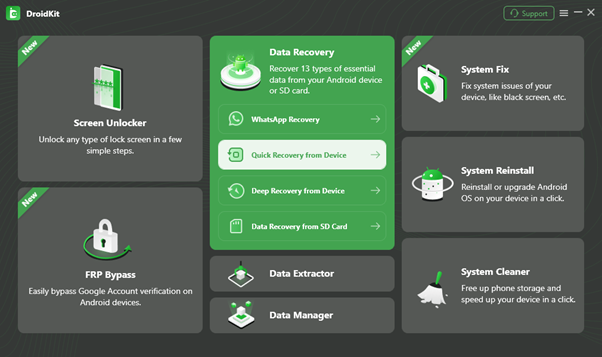 Scan Device: Connect your Android phone via USB. The software will identify your device model (supporting over 20,000 models, including Samsung and Xiaomi) and begin scanning automatically.
- Preview and Restore: DroidKit allows you to preview all recoverable items.
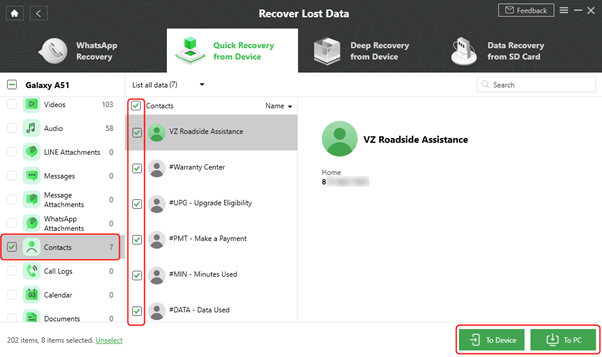 Important: This step is crucial. Use the preview feature to verify the quality of the photos before proceeding. The scan is generally free, but restoring the files to your computer usually requires activating the full license. Ensure the data found is worth the cost before you pay.
This workflow ensures that even if you face Android file system limitations, you can still access a significant portion of your lost data safely.
FAQs: Maximizing Your Android Data Recovery Chances
Whether you rely on data recovery apps no root or manual backups, the moments immediately following data loss are critical. Here is how to maximize your success.
Can I fully recover deleted files on Android without root?
“Fully” is a strong word. Without root, you can recover files that exist in caches, temp folders, or backups. You generally cannot recover a high-resolution file that has been permanently deleted from the file system and has no cached version. However, tools like DroidKit maximize the yield of what is accessible, often retrieving readable messages and viewable photos.
Can I recover deleted photos after clearing the recycle bin?
Yes, but it is harder. Once the recycle bin is cleared, the direct file reference is removed. You must use a tool like DroidKit immediately to scan for cached thumbnails or un-indexed data fragments before they are overwritten.
Do desktop tools help with Android recovery without root?
Yes. Desktop tools often have more processing power and stable connection protocols than mobile apps installed directly on the phone. Furthermore, installing a recovery app on the phone you are trying to save can overwrite the very data you are trying to find. Using a PC is always the safer choice.
Does a factory reset prevent data recovery?
Yes. If you perform a factory reset, the encryption keys for your data are usually wiped. On modern Android devices, this renders recovery nearly impossible for the average user, even with professional tools.
Conclusion
Losing data can feel like losing a part of your digital memory, but it does not have to be permanent. While Android file system limitations make deep scanning difficult, solutions exist that respect your device’s security while delivering results.
Start by checking your native trash bins and cloud backups—these are your best free options. If those fail, a specialized tool like DroidKit serves as a reliable next step. By using the Quick Recovery mode, you can bypass the risks of rooting while scanning for cached files and messages. Use the free scan to see exactly what is recoverable, check the quality, and then decide if the restore is worth the investment.