

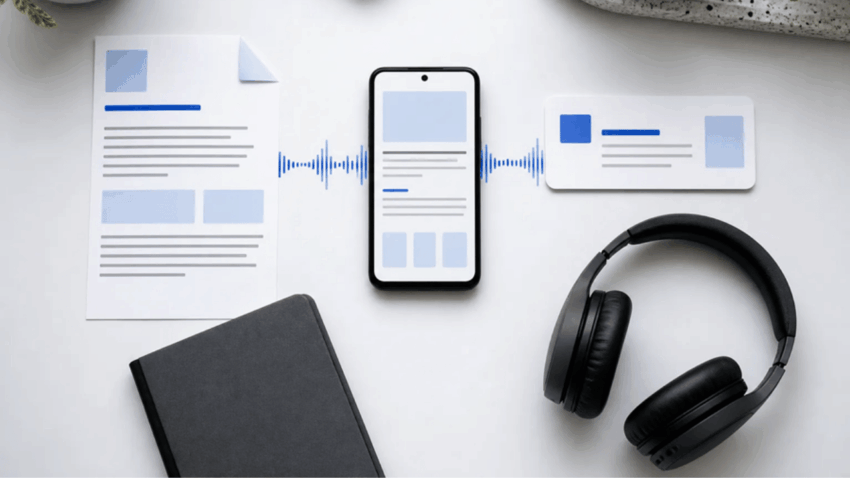
One Android reading routine can cover PDFs, web articles, and ebooks without hiding the source—original editorial image created for this article.
The PDF is in cloud storage, the article is open in a browser, the EPUB came from a publisher, and the class notes exist only as a photo. A useful text-to-speech app for Android has to cope with that untidy reality. Built-in accessibility features can read a short selection, but long sessions usually need steadier playback, visible highlighting and a reliable way to resume across mixed formats.
The best workflow begins by identifying the source, not by searching for a single button that promises to read everything.
Match Android text-to-speech to the content
A normal webpage can often be opened directly from its URL. A text-based PDF may be imported as a file, while a scanned PDF or photograph needs optical character recognition before speech is possible. DRM-free EPUB files require a reader that understands the ebook structure. Books tied to a commercial service depend on the access and compatibility provided by that service.
These distinctions matter. If a scan is blurry, words may be recognized in the wrong order. If a PDF uses multiple columns, a reader may jump between sections unexpectedly. A protected ebook cannot simply be treated like an ordinary file. Good software explains those boundaries instead of hiding them behind a universal claim.
Features that make long listening practical
Voice quality attracts attention, but navigation determines whether an app remains useful. Look for synchronized highlighting, automatic scrolling, background playback, resume position, speed control, and lock-screen controls. Highlighting helps users verify names and technical terms, while resume support prevents a long report from restarting after an interruption.
The CastReader Android reading app combines those reading controls with support for multiple mobile sources, including supported documents, webpages, images, pasted text, and DRM-free EPUB files. Its Read & Explain option can also unpack a difficult passage while keeping the original material visible.
Build a reliable import routine
For a webpage, use Android’s share menu or paste the link into the reader. For a local file, start from the file manager or the app’s import screen. Check the first few paragraphs before beginning a long session. If the reading order is wrong, return to the source and try a cleaner file rather than accepting a confusing narration.
Use normal speed for unfamiliar material and increase it only after comprehension remains stable. Headphones help in public spaces, but users should pause playback when crossing roads, driving, or performing any activity that requires full attention.
Readers who want the direct installation page can find CastReader on Google Play. The objective is not to convert every screen into audio. It is to choose a dependable reading path for the documents and articles that can be understood without studying their visual layout.
Before importing work files or personal records, review the app’s privacy information and the rules of the organisation that owns the document. Contracts, health information and customer data may require an approved reader. The right text-to-speech app for Android must therefore pass three tests at once: it handles the actual file, fits the listening situation and treats the content responsibly.
